How to create a landing page 7 – Multilingualization
Multilingualize your site
Set up multilingualization with Polylang
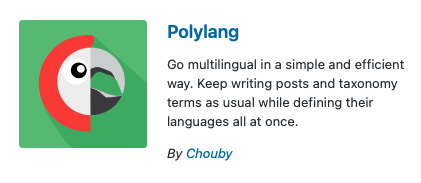
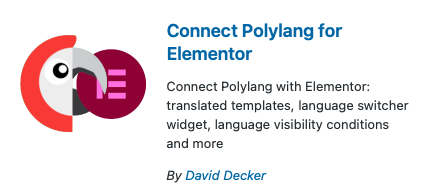
① Install and activate the “Polyang” and “Connect Polylang for Elementor” plugins.
② Access Installed Plugins > Polyang > Settings.
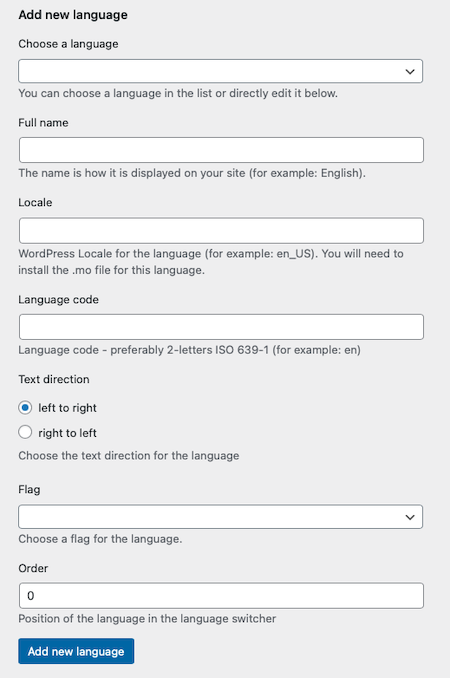
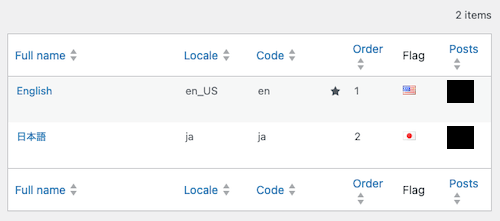
③ Add English and Japanese from “Add Language.”
④ English setting example
Select Language: English – en_US
Name: English
Locale: en_US
Language Code: en
Order: 1
⑤ Japanese Language Settings Example
Select Language: Japanese – ja
Name: Japanese
Locale: ja
Language Code: ja
Order: 2
⑥ Confirm whether to use language codes in URLs.
Language > Settings: “Do not display language information for the default language in URLs”
⑦ Add a container to the right of the menu bar and place the “Language Switcher” there.
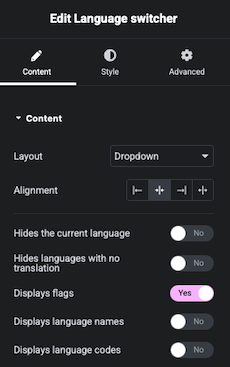
⑧ Setting the “Language Switcher” as follows will display the language of the currently displayed site using only the national flag.
Content > Layout: Dropdown
Content > Position: Center
Content > Hides current language: No
Content > Hides languages without translation: No
Content > Displays flags: Yes
Content > Display language names: No
Content > Display language codes: No
⑨Adjust the position of the displayed flags and the menu labels to align them vertically.
Container > Advanced
⑩Check the following in Plugins > Installed Plugins > Polylang > Settings.
Order: Display order of the language switcher
★: Default language
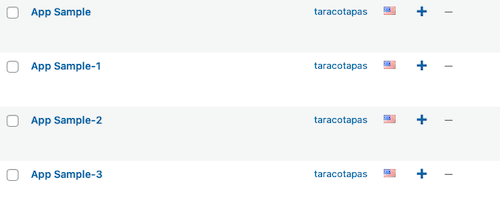
⑪When you add a fixed page, it will be created as an English page in the default language. If you want to create Japanese pages as well, click the “+” button.
⑫The Japanese pages created additionally are only set to Japanese. The content itself has not changed, so you will need to translate it using Google Translate or similar tools and rewrite it yourself. The free version of Polylang only creates copies of pages for each language based on settings and does not automatically translate the content.
How to create a landing page 7 – Multilingualization