② Create a new static page and set up a container.
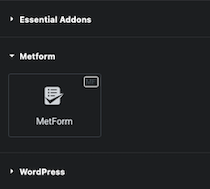
③ Add the “Metform” widget.
④ Click “Edit Form.”
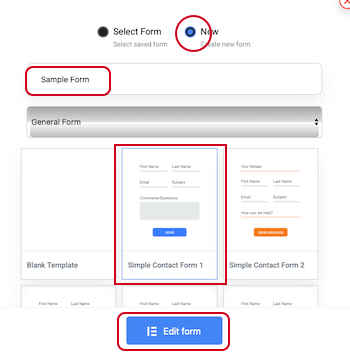
⑤ Check “New,” enter the form name in “Enter a form name,” select a form template, and click “Edit Form.”
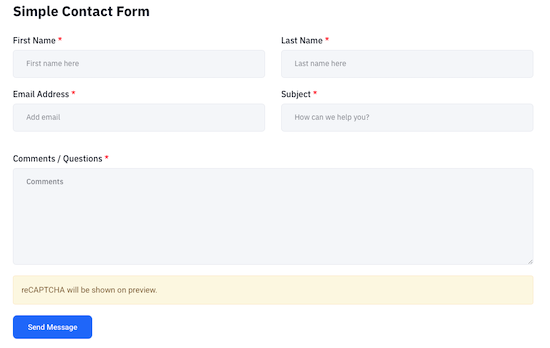
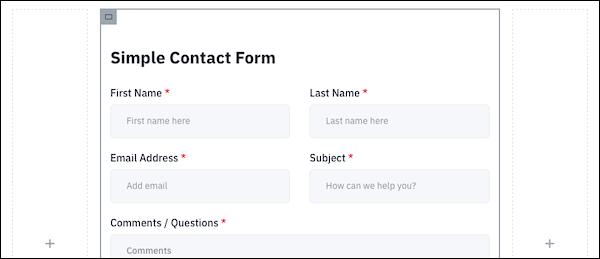
⑥ Check “New,” enter the form name in “Enter a form name,” select a form template, and click “Edit Form” to create a form like the one below.
⑦ Since the width is large, we’ll create space on both sides and position the form in the center. Create a new section and use Flexbox to create three containers with space on both sides.
⑧ Copy the “Sample Form” section (marked with six dots) and paste it into the central container created earlier.
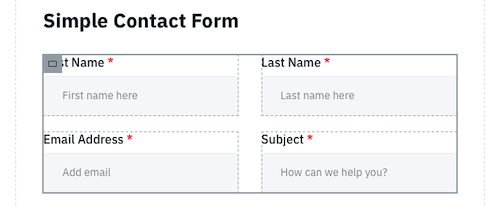
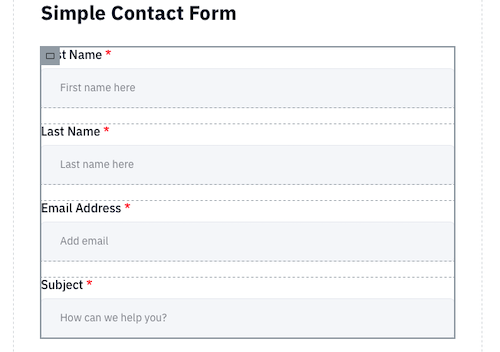
⑨ Convert the two vertical columns of input fields within the container into a single column.
Layout > Container > Items > Columns: 2 → 1
⑩The input fields will now be in a single vertical column.
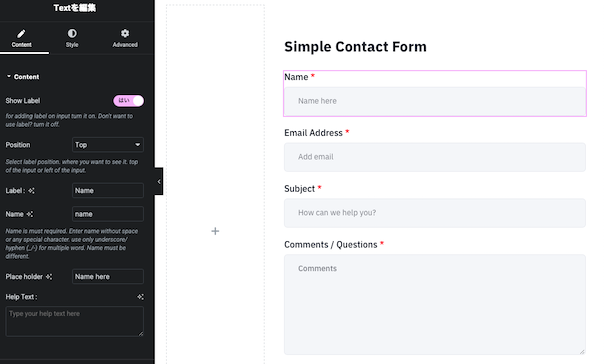
⑪”First Name” and “Last Name” are combined into “Name”.
⑫Click “FORM SETTINGS” to configure the settings.
⑬In “FORM SETTINGS,” make the following changes and save.
General > Success Message: Automatic reply email to the sender. Example: “Your email has been sent. Thank you for contacting us.”
Notification > Email Subject: Notification email title for yourself. Example: “Inquiry to ◯◯.”
Notification > Email To: Notification email address for yourself.
After switching the “Notification mail to admin” check from No to Yes, configure the following settings:
Notification > Email Subject: Notification email title for yourself. Example: “Inquiry to ◯◯.”
Notification > Email To: Notification email address for yourself.
⑭ Once the settings are complete, click “UPDATE & CLOSE” to save. Settings can be changed later using “Edit Form.”
reCAPTCHA settings
Set up reCAPTCHA. reCAPTCHA has two types: V2, which uses image-based quizzes, and V3, which uses a scoring system. Here, we will use V3.
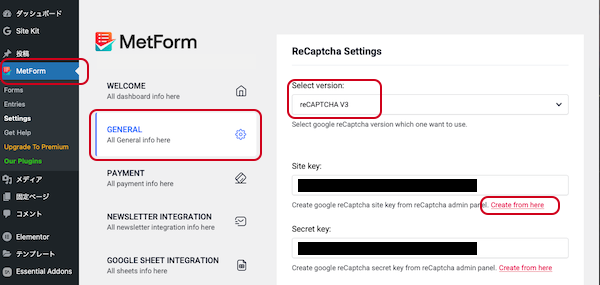
① In MetForm > Settings > GENERAL, select “reCAPTCHA V3” and click “Create from here.”
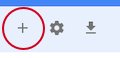
② You will be redirected to the Google reCAPTCHA site. Click the “+” icon in the top-right corner.
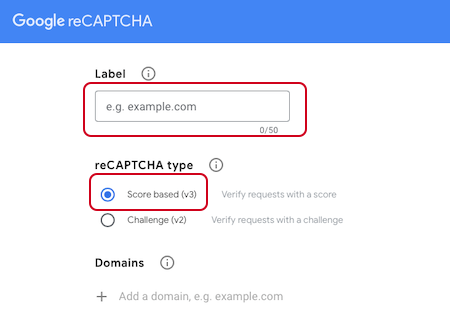
③Enter your domain name in the label field, select the reCAPTCHA type, and click “Submit.”
④Copy the site key and secret key that are generated and set the keys in Metform.
Email settings for replies
①You can create a reply email address in Lolipop!
Mail > Mail Settings > Create New
Check “info@domain name.com” and click “Create New.”
②Check the “info@domain name.com” box and click “New Creation.” If you want to freely create the info part, proceed with “New Creation” without checking the box.
③After logging in, you can check sent and received emails.
④You can set the following in “Environment Settings.”
Forwarding email address
Keep/do not keep emails on the server after forwarding